Blank Data Entry Form
Blank data entry forms allow you to pull Customize Fields in People Records to create forms that can be used by office staff, your members, or for sign ups.
Access Blank Data Entry Form
To access from the Button Bar, go to Reports/Export > Other > Blank Data Entry

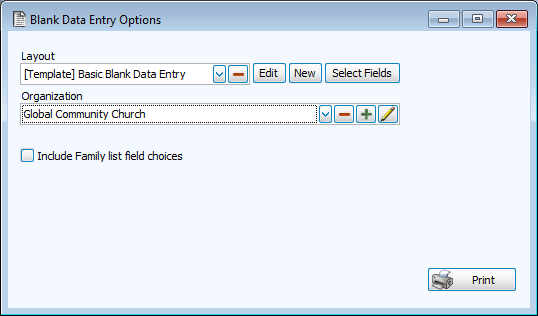
Blank Data Entry Options
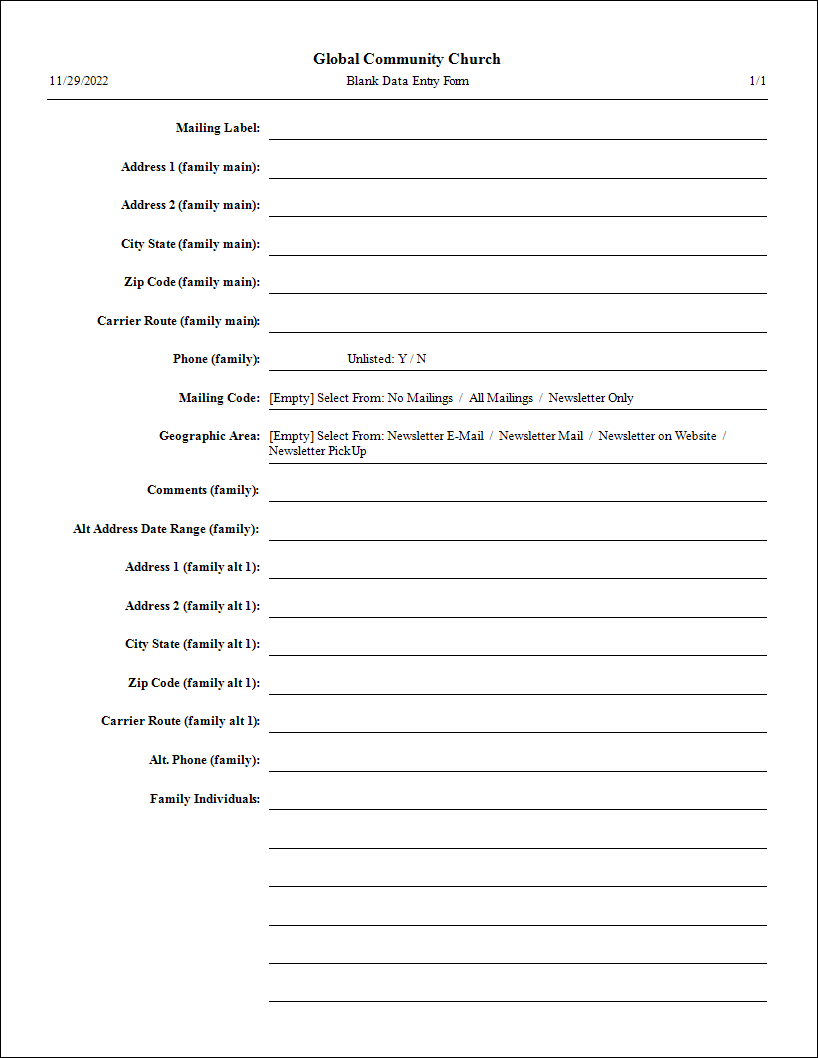
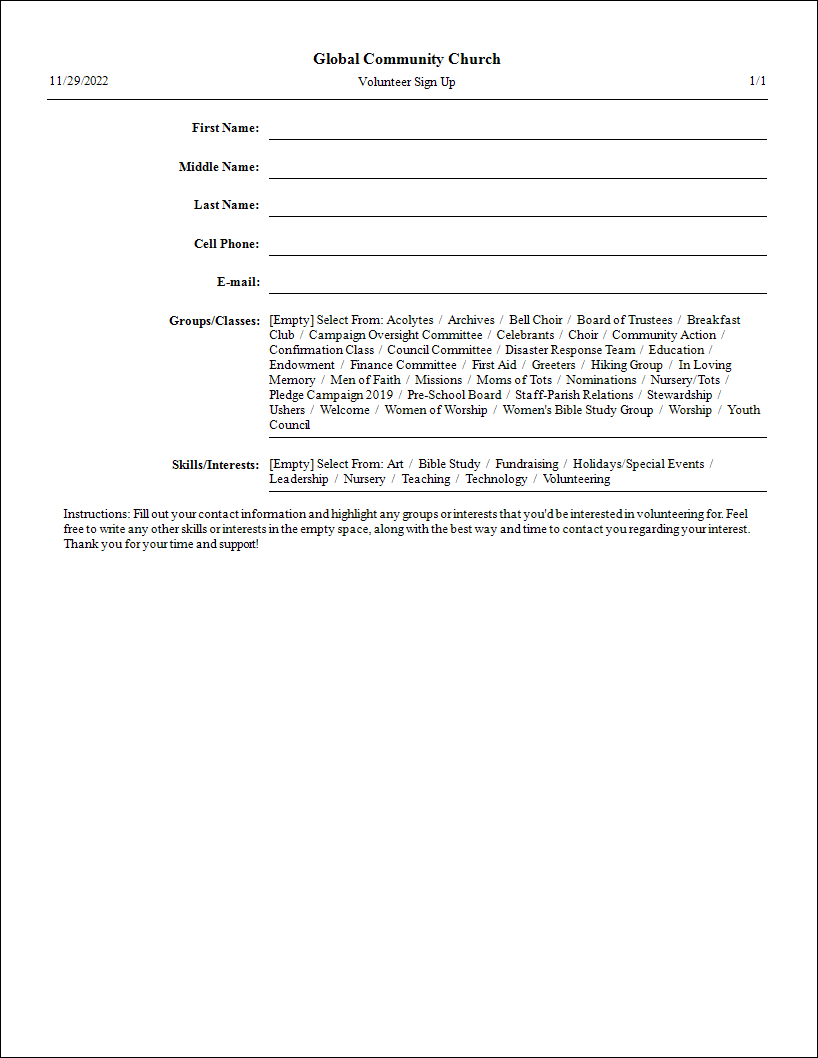
Form Examples
Create a New Blank Form Layout
-
Click
 next to the layout drop down.
-
Start with defaults by clicking
 for the template fields or
  to select the fields included for a Membership category in Customize Fields.
 -
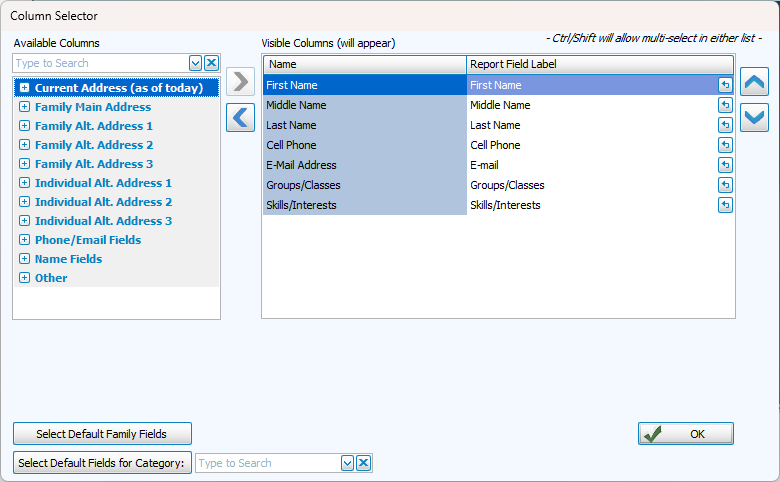
With the column selector, choose the fields you want to include in your form.
-
Move columns you want to include to the right, and columns you want to exclude to the left.
-
Use the
 and
and  or double click to move a column to the opposite side.
 -
To select multiple columns at once
-
Click + CTRL - Selects multiple lines in any order
-
Click + SHIFT - Selects a range of lines in row
-
-
Use the
 and
and  to change the order of the entries from top to bottom.
-
-
Click
 to save your new report setup.
Edit a Blank Form Layout
-
To add or remove fields from a layout, select from the drop down and click
 to open the column selector.
-
To format text or add additional text, click
 to open the Report Designer.
Delete a Blank Form Layout
-
Select the layout you want to delete from the drop down.
-
Click the red minus button.
Organization

By default, the organization info as entered in System Information will be used in reports. You may want to create a separate set of organization for reports or forms to distinguish between parts of your organization, such as a group or daycare.